Frequently Asked Questions#
Discord API Frequently Asked Questions.
How Do I Create an Application?#
Navigate to your Developer Portal in a browser of your choice.
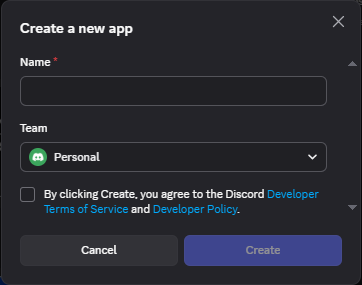
On the top-right portion of the page, click on the New Application button. This will prompt you a modal to which it asks the name of your application, and to which team to apply—most of the time, you’d set the team to “Personal”.
My application name is not getting accepted
Most likely the name that you are trying to use is pretty common, or Discord blacklists you from doing so, i.e. any name containing “discord”.
After doing so, tick the checkbox of “By clicking Create, …” and click on the Create button.
How Do I Get A Bot Token?#
Go to your Developer Portal in a browser of your choice, and select your desired application. Navigate to your application’s Bot tab from the left sidebar.
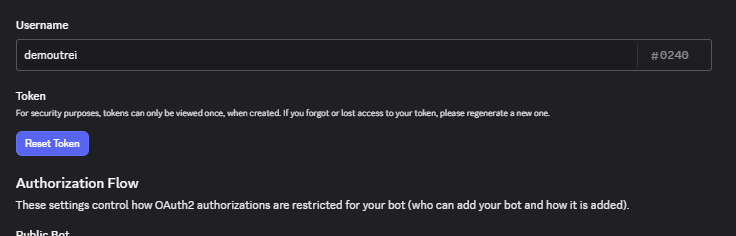
Just below the bot’s username, you’ll find a Token section. To fetch and copy a bot token, you’ll have to click on the Reset Token button.
Important
Store your bot’s token in a secure place, e.g. in a password manager or in a .env file. Never, ever, share it to anyone you don’t trust. Anyone who has access/stored your bot token can do anything with your bot in their behalf.
What To Do If My Bot Token’s Leaked/Hacked?
Immediately reset your bot’s token and store the new one more properly and secured.
How Do I Invite My Bot?#
Go to your Developer Portal in a browser of your choice, and select your desired application. Multiple ways you can get an invite of your bot.
Method 1#
Navigate to your application’s OAuth2 tab from the left sidebar, and scroll down to the OAuth2 URL Generator.
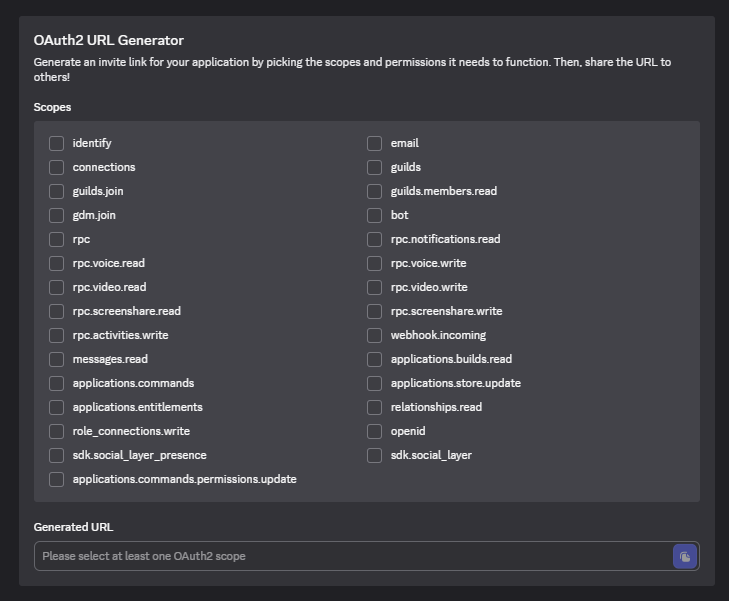
Under the Scopes area, tick the bot scope.
Ticking the bot scope will prompt the Bot Permissions area. Select the scopes necessary for your bot to function.
Danger
Under no circumstances does your bot needs the Administrator permission. Giving your bot the Administrator permission may lead to worse consequences when you get your bot token compromised.
In the Integration Type portion, select Guild Install if you want to invite your bot to a Discord server/guild; or User Install if you want to install it to your account.
Once things are set, you will be given with an invite URL under Generated URL below that you can copy and paste to your browser.
Issue: It’s not giving me an invite URL
You could be refused from be given an invite link for a few reasons.
- Case 1: Redirect URI
If it’s prompting your to enter a redirect URI, you may have the Requires OAuth2 Code Grant setting enabled.
To fix this, navigate to the Bot tab from the left sidebar, and scroll down to the Authorization Flow section.
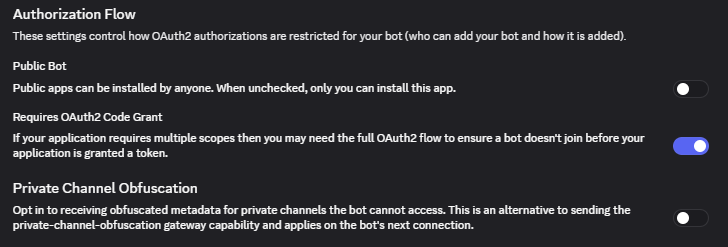
Disable Requires OAuth2 Code Grant setting and save changes. Re-doing the steps should prompt you an invite URL now.
Misconception
The OAuth2 URL Generator does NOT function as settings and will NOT save as you go on.
Method 2#
Navigate to your application’s Installation tab from the left sidebar.
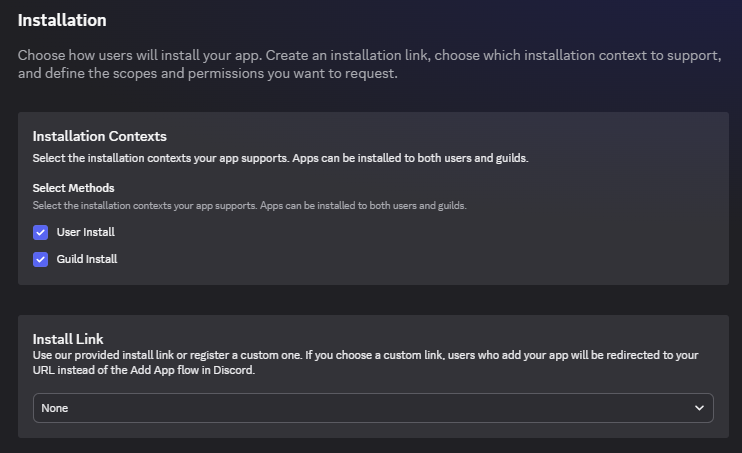
Under the Installation Contexts: to be able to invite to a Discord server/guild, the Guild Install method must be ticked; to be able to install the app to your account, the User Install method must be ticked.
In the Install Link portion, select upon the Discord Provided Link option.
Issue: I cannot see that option
If you cannot see the option, you likely have the Public Bot setting disabled.
To fix this, navigate to the Bot tab from the left sidebar, and scroll down to the Authorization Flow section.
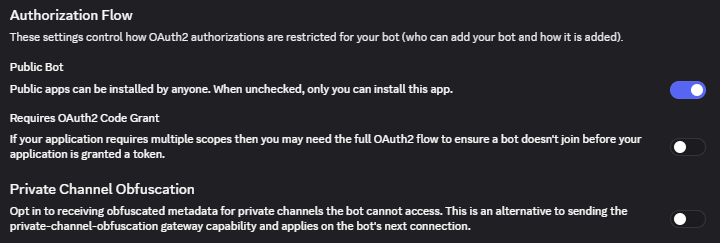
Enable Public Bot setting and save changes.
Scrolling down, a Default Install Settings section is prompted. For you to invite your bot with a bot user, the scopes under Guild Install must include the bot scope.
Afterward, select the permissions necessary for your bot to function. Save changes.
Once things are set, an invite URL will be generated in the Install Link section—you can copy it and paste it to your browser.
Note
Setting an install link will append an “Add App” button in your app’s profile that other users can use to invite your app to their servers or install to their accounts, depending on the configuration.
See also